How to download TikTok videos on PC
- Copy the video address. Open the TikTok video on www.tiktok.com in Chrome, Edge, Safari or Firefox. Click the address bar and copy the full link with Ctrl+C on Windows or Cmd+C on a Mac.
- Paste it into Toltik. Open toltik.com in another tab, click the box at the top and paste the link. Then click Download.
- Pick a file and save it. Click the MP4 without watermark, the HD MP4 or the audio. Your browser saves it to your Downloads folder, or asks where to save it if you set it up that way.
- Open the file. Open the browser's downloads list or your Downloads folder and double-click the MP4. If the HD file does not play on Windows, read the HEVC section of this guide.
Download TikTok videos on PC: the short answer
To download TikTok videos on PC, you only need a browser. Open the video on www.tiktok.com, copy the address, paste it into the box at the top of this page and click Download. The MP4 goes to your Downloads folder.

This works the same on Windows 10, Windows 11, macOS and Linux. Toltik is the free TikTok downloader this site is built around. It has no app, no extension and no sign-up, and it is not affiliated with TikTok.
- You get an MP4 without the moving watermark, usually 576p to 720p in H.264.
- You get an HD MP4 when TikTok stores one, often 1080p, encoded in H.265.
- You can also save the sound and every picture of a photo slideshow.
- It only works for public posts. Private videos and drafts cannot be downloaded.
In our own test of 4 real posts on 11 October 2026, Toltik read each link in 0.6 to 1.8 seconds, and all 9 files we asked for came back fine.
What you need before you start
There is very little to prepare. You do not need a TikTok account to save a public video, and you do not need to install a program.
- A Windows PC, a Mac, a Chromebook or a Linux computer.
- An up-to-date browser: Chrome, Microsoft Edge, Safari or Firefox.
- The link of a public TikTok video or photo post.
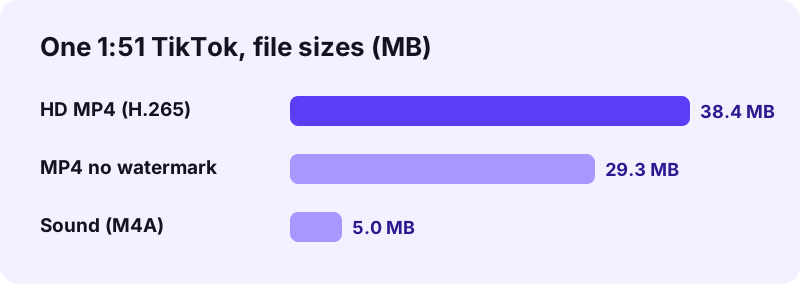
- A few megabytes of free space: a 2-minute HD clip is around 40 MB.
Which TikTok links work on a computer
On a computer the easiest link is the one in the address bar, which looks like www.tiktok.com/@user/video/123…. Short links copied on a phone, such as vm.tiktok.com/…, work too, so you can send a link from your phone to your PC and paste it there.
How to download TikTok videos on Windows with Chrome
Chrome is the most used browser on Windows, so we start there. The same steps work in Brave, Opera and other Chrome-based browsers.
Step 1: copy the address of the TikTok video
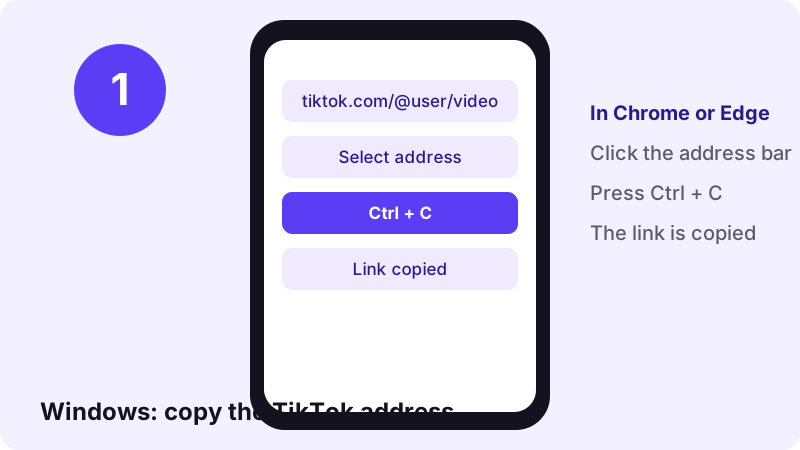
Go to www.tiktok.com and open the video so it plays on its own page. Click once in the address bar to select the whole link, then press Ctrl+C.
Step 2: paste the link into Toltik
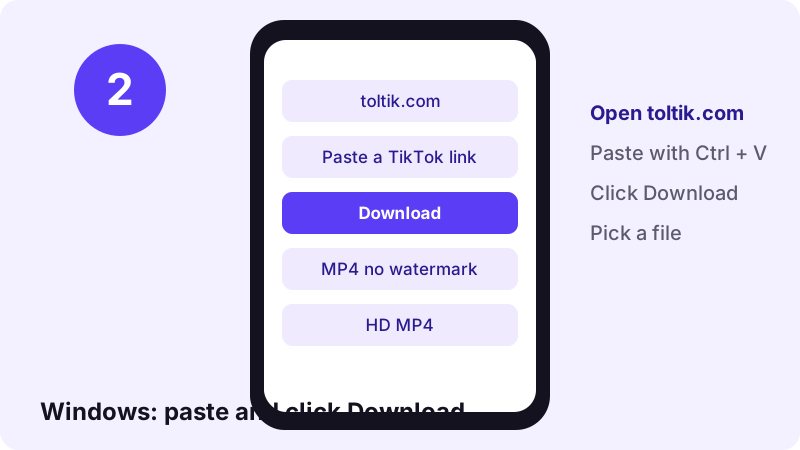
Open toltik.com in a new tab. Click the box at the top, press Ctrl+V or click Paste, then click Download. After a second or two you see the video's cover and the files you can save.
Step 3: save the MP4 and open it
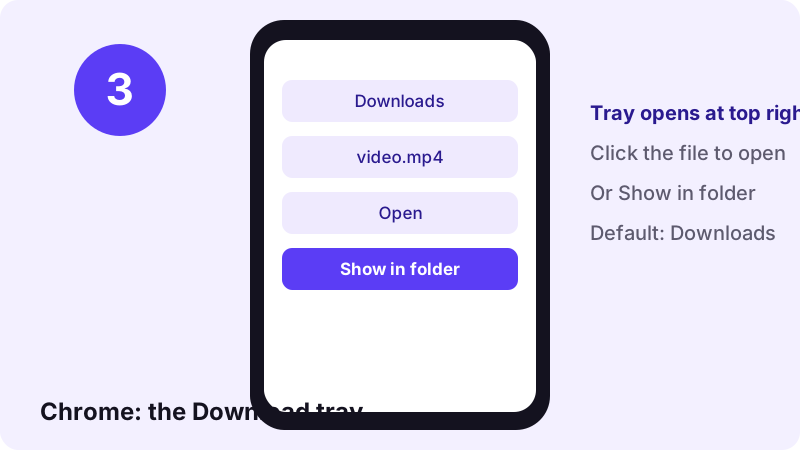
Click MP4 without watermark or HD MP4. Chrome starts the download, and its Download tray appears at the top right when the file is done.
“When you begin a download, a Download in progress icon appears on the top right next to the address bar. Once the download completes, the Download tray opens.”
- Click the file in the tray to play it in your default video app.
- Point to the file name and choose Show in folder to see it in File Explorer.
- Lost the tray? Open Chrome's menu (More) and choose Downloads for the full list.
If Chrome asks where to save the file, pick a folder and click Save. Chrome only asks if you turned that option on; otherwise the MP4 goes straight to Downloads.
How to save TikTok videos on Windows with Microsoft Edge
Edge comes with every Windows PC, so many people never install another browser. The steps to download TikTok videos on PC with Edge are almost the same as in Chrome.
- Open the TikTok video on www.tiktok.com in Edge.
- Click the address bar and press Ctrl+C.
- Open toltik.com in a new tab, paste the link and click Download.
- Click the MP4 you want. Edge lists the download in its Downloads menu near the top right of the window.
- Click the file there to open it, or open your Downloads folder in File Explorer.
Find the folder Edge saves to
If you cannot find the video, check where Edge is set to save files. Microsoft explains the path:
“The file path for your downloaded files (for example, C:\Users\[your name]\Downloads) is listed under Location.”
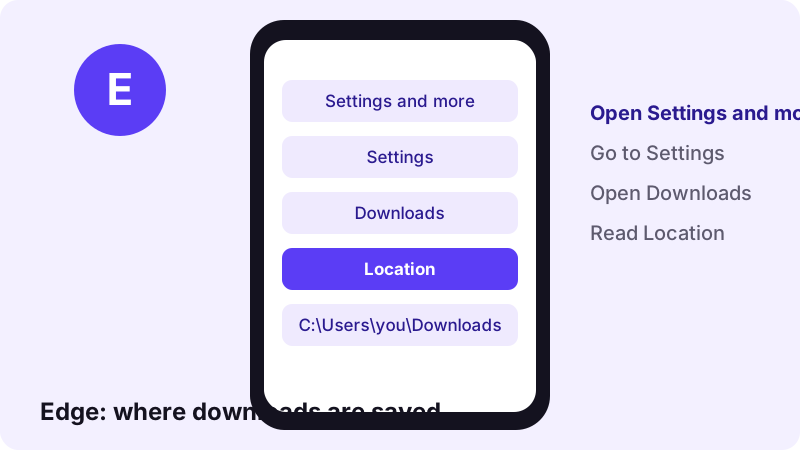
To get there, open Settings and more (the three dots), then Settings, then Downloads. You can change the folder there or turn on the option to be asked each time.
How to download TikTok videos on a Mac (Safari and Chrome)
On a Mac you can use Safari, which is already installed, or Chrome. Copy the link with Cmd+C and paste it with Cmd+V; everything else matches the Windows steps.
With Safari on macOS
- Open the TikTok video on www.tiktok.com in Safari.
- Click the address field and press Cmd+C.
- Go to toltik.com, paste the link and click Download.
- Click the MP4 you want. If Safari asks whether to allow the download, click Allow.
- Click the Downloads button near the top right of the Safari window to see the file.
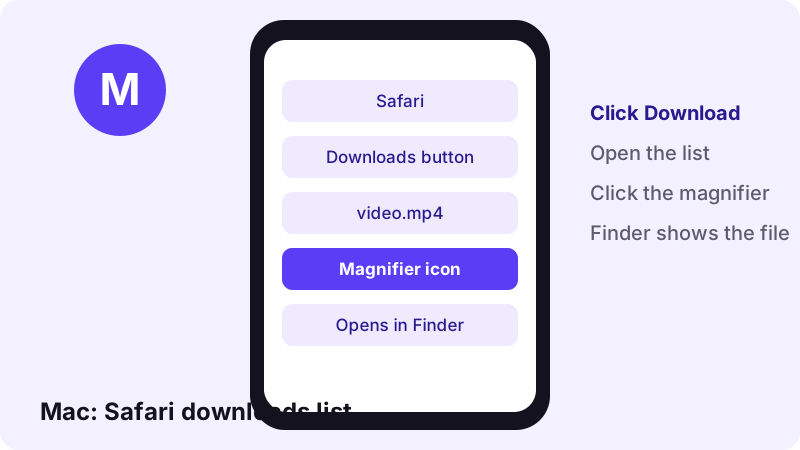
In the downloads list, click the magnifying glass next to the file name to show it in Finder. Apple notes that by default Safari removes items from that list after one day. The file itself stays on your Mac.
With Chrome on a Mac
Chrome on macOS behaves like Chrome on Windows. The Download tray opens at the top right, and Show in Finder takes you to the file.
Where the video lands on a Mac
“The Downloads folder is the default location for files you download from the Internet.”
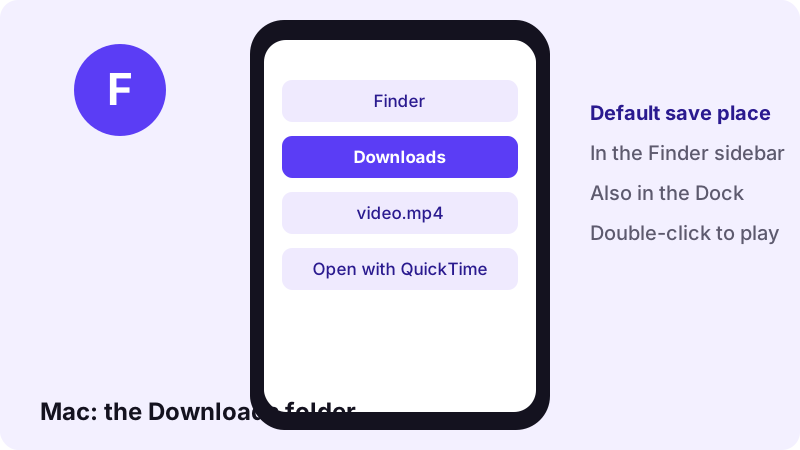
The Downloads folder sits in the Finder sidebar and in the Dock. To change it in Safari, choose Safari → Settings, click General and use the File download location menu.
Where do downloaded TikTok videos go on a PC?
Every desktop browser saves to the Downloads folder unless you changed it. This table shows how to reach the file from each browser.
| Browser | Default folder | How to see your downloads | Open the folder |
|---|---|---|---|
| Chrome (Windows) | C:\Users\[you]\Downloads | Download tray, or More → Downloads | Show in folder |
| Edge (Windows) | C:\Users\[you]\Downloads | Downloads menu at top right | Downloads folder in File Explorer |
| Safari (Mac) | Downloads | Downloads button, top right | Magnifying glass |
| Chrome (Mac) | Downloads | Download tray, or More → Downloads | Show in Finder |
| Firefox (any) | Downloads | Downloads arrow in the toolbar | Downloads folder |
Open the Downloads folder on Windows
Press the Windows logo key + E to open File Explorer. On Windows 11 (version 22H2 and later), Microsoft says Downloads is pinned in Quick access by default, so it sits in the left pane.
Change where your browser saves TikTok videos
- Chrome: Settings → Downloads → Location, then Change.
- Edge: Settings and more → Settings → Downloads → Location.
- Safari: Safari → Settings → General → File download location.
- Tip: a dedicated folder such as Videos\TikTok keeps your saves apart from other files.
Does TikTok's website have its own download option?
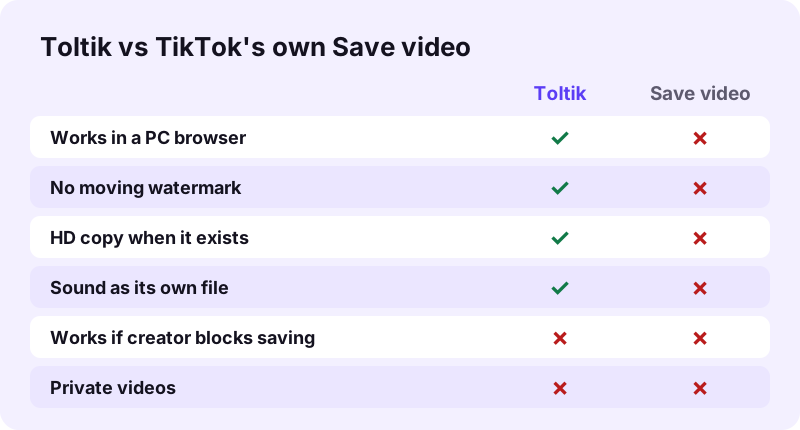
TikTok runs an official page about downloading at www.tiktok.com/download-video. It describes the Save video button in the TikTok app: tap Share on the side of the video, then Save video. It also explains when that button is missing.
“If you don't have the option to save a video, this means the creator doesn't allow it.”
The same page says TikTok does not support downloads without watermarks. We could not find a TikTok help article that documents a download button on the desktop website, so we do not promise one. If you see one on your account, expect the same watermark and the same creator rule.
- Watermark: TikTok's own copy carries the TikTok logo and the username.
- Creator setting: no option means the creator turned saving off.
- App first: the documented steps are for the phone app, not a PC browser.
Some creators turn off downloads on purpose. Respect that choice: keep other people's videos for personal viewing, or ask them first.
Comparing the ways to save a TikTok on a computer
There are three common ways to keep a TikTok on a PC. They give very different files.
| Method | Watermark | Quality | Install needed | Best for |
|---|---|---|---|---|
| Toltik in the browser | No (one file with it too) | Original, HD when stored | No | Clean MP4, sound, slideshow photos |
| TikTok's Save video (app) | Yes, logo + username | Original | TikTok app | Quick share from your phone |
| Screen recording | Whatever is on screen | Lower, with buttons and captions | Built into Windows and macOS | Live streams, last resort |
A screen recording copies your screen, not the file. You get the like buttons, the caption and anything that pops up, and you have to trim it by hand. For a normal post, the Toltik downloader gives a cleaner copy.
Playing HD TikTok files (H.265) on Windows and Mac
The HD MP4 is often encoded in H.265, also called HEVC. It keeps more detail in a smaller file than H.264, but older Windows setups may not play it out of the box.
If the HD file opens with a black screen, sound only or a codec error, the video is fine. Your player just lacks an HEVC decoder.
| System | Plays H.265 out of the box? | What to do |
|---|---|---|
| Windows 11, version 22H2 or later | Usually yes | Double-click the file |
| Windows 10 (1709 and later) | Often no | Add HEVC Video Extensions from the Microsoft Store, or use the standard MP4 |
| macOS 10.13 High Sierra or later | Yes | Open in QuickTime Player |
| Older macOS | No | Use the standard MP4 (H.264) |
Windows 10: the HEVC Video Extensions
Wikipedia notes that Windows 10 had built-in HEVC support at first, but it was removed in version 1709 because of licensing costs. The fix is the HEVC Video Extensions add-on in the Microsoft Store. It is paid, and the price shown depends on your country.
Microsoft's Store listing says the extension uses the video hardware of newer PCs, and falls back to software decoding on others, where playback may vary with the resolution and the PC's speed.
Windows 11: usually nothing to do
“Since Windows 11 version 22H2, the HEVC Video Extensions is built-in by default installation.”
Mac: QuickTime plays it
Apple added HEVC support in macOS High Sierra in 2017, so a Mac on High Sierra or later can play the HD file, for example in QuickTime Player.
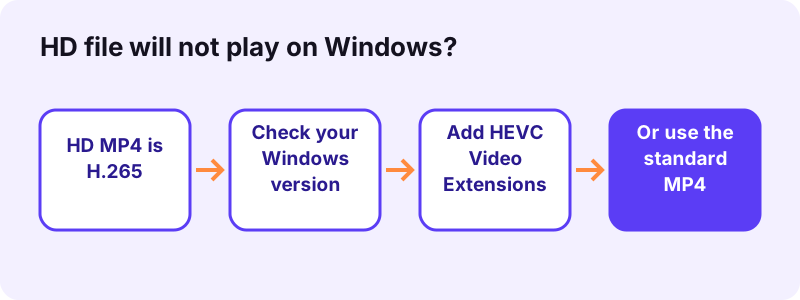
- Do not want to add anything? Download the MP4 without watermark instead. It is H.264 and plays almost everywhere.
- Editing the clip? Most current video editors open H.265, but an older editor may need the H.264 file.
- Uploading somewhere else? The H.264 MP4 is the safest choice for old websites and apps.
Save TikTok sounds and photo slideshows on PC
The same link gives you more than the video. You can save the sound and every image of a slideshow, and they land in the same Downloads folder.
Save a TikTok sound as an audio file
Paste the link and pick the audio file, which comes as M4A or MP3, as TikTok stores it. A 15-second sound is about 0.25 MB. Our TikTok to MP3 page explains the formats and how to use the audio on a PC.
Save every picture of a photo slideshow
For photo posts, Toltik lists each slide as a JPG at its original size. Click each one to save it, or use the TikTok photo downloader, which is built for slideshows.
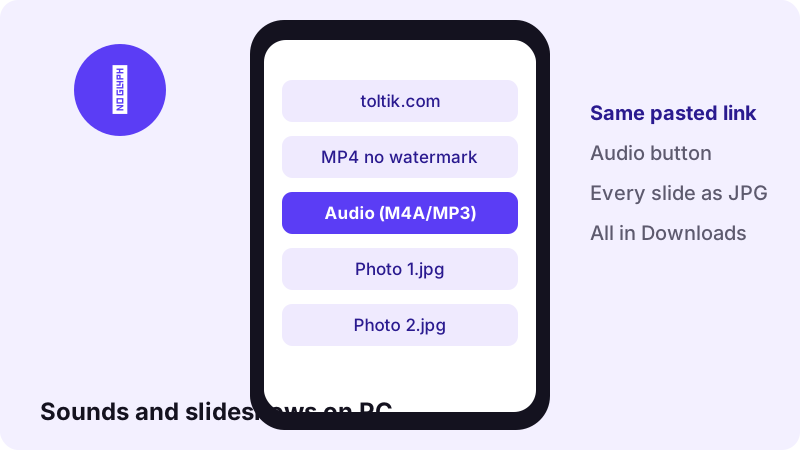
Public stories work too, from the story downloader. Here are all the tools:
TikTok for PC vs a TikTok downloader: not the same thing
Many people who search for "TikTok for PC" want to watch TikTok on a big screen, not save files. That is a different job, and a downloader does not do it.
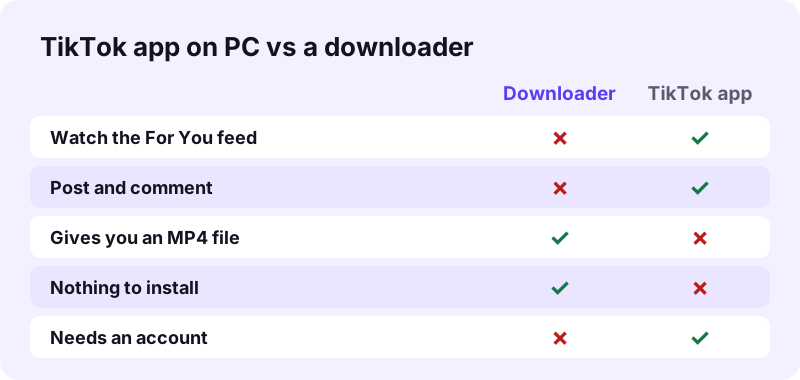
- To watch, post and comment: use www.tiktok.com in your browser, or TikTok's official app if your system offers one in its app store.
- To keep a file: use a downloader, which gives you an MP4 you can play offline, edit or back up.
- Never enter your TikTok password on a download site. Toltik never asks for it.
You can mix the two. Browse on the website, and when you find a clip you want to keep, copy its address and paste it on our home page.
Troubleshooting a TikTok download on PC
Most problems come from the link, the post's privacy or the player. Find your symptom below.
| What you see | Likely cause | Fix |
|---|---|---|
| We could not read that post | The video is private, deleted or blocked in your region | Only public posts can be saved. Ask the creator for the file. |
| Paste a TikTok link… | You copied a profile or search page, not a video | Open the video itself and copy that address. |
| The download link stopped working | Download links expire after 1 hour | Paste the TikTok link again for a fresh link. |
| Video opens in a tab instead of saving | The browser chose to play it | Point to the video and use its Download button, or right-click and save. |
| HD file shows black or no picture | No H.265 decoder on this PC | Add HEVC Video Extensions or use the standard MP4. |
| Cannot find the file | It went to another folder | Open the browser's downloads list and click Show in folder. |
Nothing happens when I click Download
- Check that you copied the whole address, including the long number at the end.
- Turn off any extension that blocks downloads or pop-ups for toltik.com, then try again.
- Reload the page and paste the link a second time.
- Try another browser. If it works there, the problem is a setting or extension in the first one.
The download stops halfway
Large HD files can stall on a weak connection. Delete the broken file, paste the link again and restart the download. In Safari, Apple's guide says you can resume a paused download from the downloads list.
Copyright: what you may do with a saved TikTok
Being able to download TikTok videos on PC does not make them yours. The creator still owns the video and usually the right to decide how it is reused.
“Fair use is a legal doctrine that promotes freedom of expression by permitting the unlicensed use of copyright-protected works in certain circumstances.”
- Saving your own videos as a backup is the clearest use.
- Watching a saved clip offline for yourself is personal use.
- Reposting, remixing or using a clip in an ad needs the creator's permission.
- Always credit the creator by name when you share their work.
TikTok's own download page asks people not to use third-party tools to save other users' videos, to avoid legal disputes. Keep that in mind, and read more in our fair-use section.
Tips to keep TikTok videos tidy on your computer
- Rename each file with the creator's username so you can credit them later.
- Keep the HD file for viewing and the H.264 file for sharing or old editors.
- Back up the folder to an external drive or cloud storage you trust.
- Clear old entries from the browser's downloads list; this removes the entry, not the file.
That is all it takes. Copy, paste, click and play, on any PC or Mac.
Frequently asked questions
How do I download TikTok videos on PC without an app?
Open the video on www.tiktok.com, copy the address bar, paste it into the box on toltik.com and click Download. Then click the MP4 you want. Nothing is installed.
Where do TikTok videos go after I download them on Windows?
To the Downloads folder (C:\Users\[your name]\Downloads) unless you changed it in Chrome or Edge settings. Open the browser's downloads list and click Show in folder to jump to the file.
Can I download TikTok videos on a Mac?
Yes. In Safari or Chrome, copy the video address, paste it on toltik.com and click Download. The file goes to the Downloads folder in Finder.
Why won't the HD TikTok video play on my PC?
The HD file is often H.265 (HEVC). Windows 10 may need the HEVC Video Extensions from the Microsoft Store. Or download the standard MP4, which is H.264 and plays almost everywhere.
Does the TikTok website let me download videos?
TikTok documents a Save video button in its app, which adds a watermark and only appears when the creator allows it. We found no TikTok help page that documents a download button on the desktop website.
Can I download private TikTok videos on PC?
No. Toltik only reads public posts. Private videos, friends-only videos and drafts cannot be downloaded.
Do I need a TikTok account to save videos on my computer?
No. You can open a public video on www.tiktok.com and copy its address without logging in, and Toltik never asks for your TikTok password.
Can I save just the sound of a TikTok on PC?
Yes. Paste the link and choose the audio file, or use the TikTok to MP3 page. The sound comes as M4A or MP3, as TikTok stores it.
Does it work in Firefox or on Linux?
Yes. Toltik runs in any modern browser, so Firefox, Chrome or Edge on Windows, macOS or Linux all work. Files go to the browser's download folder.
Is it legal to download TikTok videos on PC?
Saving your own videos is fine. For other people's videos, keep them for personal viewing and ask the creator before you repost or reuse them. Rules differ by country.
Guides
Video — Save TikTok videos as MP4 without watermark, in HD.
- Looking for a SnapTik Alternative? Try Toltik
- SSSTik.io Alternatives: A Free Way to Save TikToks
- Does TikTok notify when you save a video?
- How to Save a TikTok Draft Without Posting It
- How to Download TikTok Videos on iPhone
- TikTok Video Not Downloading? How to Fix It
- How to Download Private TikTok Videos (What Really Works)
Sources
- Download a file — Google Chrome Help — Google
- Find where your browser is saving downloads — Microsoft Support
- File Explorer in Windows — Microsoft Support
- Download items from the web using Safari on Mac — Apple Support
- Mac Help: Downloads folder — Apple Support
- TikTok Downloader – Download TikTok videos — TikTok
- High Efficiency Video Coding — Wikipedia
- Fair Use Index — U.S. Copyright Office